


Gamers GLTool with Game Tuner
4.5768.00 Reviews
App Specs
- Version
- 0.0.7
- Updated On
- License
- Free
- Downloads
- 5,000,000+
- Developer
- Trilokia Inc.
- Categories
- Libraries & Demo
- Platform
- Android
Screenshots
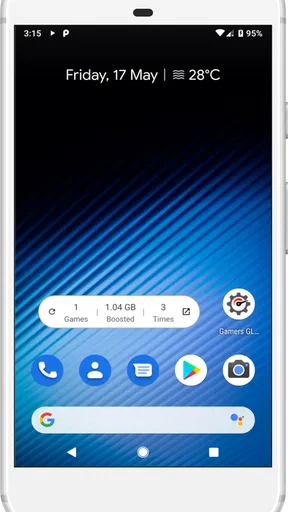
 Analysis by AppCompare
I approach Gamers GLTool with Game Tuner as a control panel to try before changing how I play: the useful question is not whether every switch sounds powerful, but whether a particular adjustment makes a game feel better on my own phone. That makes it most appealing to players who enjoy testing settings and can tolerate a little trial and error. If you want a completely automatic fix for every slowdown, I’d temper your expectations.
Start with the problem, not every setting
My first step would be to identify what is actually bothering me. A game that stutters during a busy scene presents a different problem from one that looks blurry or feels delayed online. Changing several controls at once makes it hard to tell what helped, so I’d start with one game and one specific complaint, then leave the rest of the settings alone for that test.
That careful approach matters because “better performance” is not one universal outcome. A graphics adjustment may trade visual detail for smoother play, while a more demanding setup can make a phone work harder. The sensible target is the best balance for the device and game in front of me—not the highest number or most aggressive option the interface offers.
A practical session from launch to comparison
For an everyday example, imagine I have a multiplayer match after work and the game has been uneven on my phone. I’d open the tuner before playing, make a modest change aimed at the issue I noticed, and then play a short session under conditions similar to my usual matches. I’d pay attention to whether movement feels steadier and whether the image remains comfortable to read, rather than deciding based on a quick glance at a menu.
If that first test makes things worse, I’d return to the previous setting before trying something else. If it seems better, I’d repeat the same kind of session another time. This is not as exciting as tapping every optimization option, but it gives me a more trustworthy answer: I can connect the change to the result instead of guessing which of several simultaneous tweaks mattered.
I’d also avoid tuning while a match is already underway. Changing settings between rounds or before a session gives me room to notice the effect without interrupting play. For a casual puzzle game, I might leave the graphics alone entirely; for a visually demanding game, I’d be more willing to experiment. The right workflow depends on the game, and that flexibility is a stronger reason to try a tuner than expecting one preset to suit everything.
Where the handoffs happen
The app is only one part of the process. It can expose controls and help me prepare, but the game still has its own graphics options, and the phone’s hardware still sets the practical limits. I would check the game’s built-in settings first when they already solve the problem. Then I’d use the tuner for adjustments that are relevant to my particular setup, rather than assuming it can override every restriction or make older hardware behave like newer hardware.
Worth Reading Before You Choose

Baby Panda World Brings Quick Play to Modern Phones, but Its Game Library Feels Busy

ESPN’s Live Game View Makes Following Close Games Easier

QuizzLand Review: A Good Fit for Short Trivia Breaks, Not Every Player

Basketball Stars: Multiplayer Is Fast, but Can It Recover When Matches Go Wrong?

WEBTOON Turns Phone Updates Into a Better Reading Routine

Link to Windows Runs on Shared Habits, Not Social Feeds
Network performance is another separate handoff. A connection-oriented tool may be worth trying when online play feels inconsistent, but it cannot make a distant game server closer or guarantee that a weak connection will become stable. I’d compare play on my usual network and avoid crediting a network tweak for improvements that might simply come from a quieter connection at that moment.
There is also a practical difference between a temporary performance check and routine phone maintenance. A cleaner can be convenient if I already want to review clutter, but clearing things just because a button is available is not automatically useful. I’d keep game tuning, connection troubleshooting, and storage cleanup as separate tasks so that each action has a clear purpose.
Who is likely to get value from it?
I think this sort of toolkit suits players who enjoy comparing settings, have a game that gives them a repeatable performance problem, and are willing to back out a change that does not help. It can also be useful for someone who wants tuning options gathered in one place rather than jumping between menus, although the game’s own controls remain the better starting point when they are sufficient.
I’d skip it if I never adjust graphics, my games already run comfortably, or I want a guaranteed fix without testing. It is also not the right answer when the underlying issue is a damaged device, a persistently poor network, or a game that is struggling for reasons the tuner cannot address. In those cases, reducing the game’s own visual demands, changing the connection, or simply leaving the settings alone may be the more sensible choice.
How it fits among the alternatives
Compared with relying only on a game’s built-in options, Gamers GLTool with Game Tuner brings several kinds of tuning and maintenance into one app. That convenience is its clearest distinction. The trade-off is that built-in settings are usually easier to interpret because they are presented by the game itself, while a separate tool asks me to judge how its adjustments interact with both the phone and the game.
Compared with doing nothing, the app gives curious players more room to experiment. Compared with a simple one-button booster, its mix of controls suggests a more hands-on approach—but more choices also mean more chances to change something without a clear reason. I would treat it as an optional workshop, not as a required companion for every game.
Details worth knowing before installing
Gamers GLTool with Game Tuner is a free app from Trilokia Inc. in the libraries and demo category. It has a 4.5 average from around 45,000 ratings, with more than five million installs, and its content rating is Everyone. Those figures make it a familiar option among players looking for mobile tuning tools, but popularity alone cannot tell me whether a particular setting will suit my phone.
It was released on May 17, 2019, and the current version is 0.0.7, with Android 4.3 as the minimum operating system. If I were considering it for a specific device, I’d check that the phone meets that requirement and then judge the experience by a controlled test in my own game. The app is for Android, so it is not a choice for someone looking for the same tool on iOS.
Unpacking the Toolbox
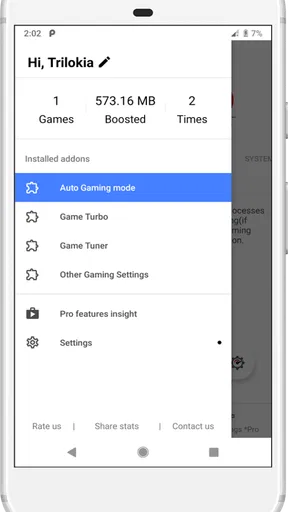
When you first open Gamers GLTool with Game Tuner, you’re greeted with a user-friendly interface that's as inviting as it is functional. You know that feeling when you find a tool that just works? That’s exactly what happened here. The app provides a range of features designed to optimize your gaming performance, from the basics like freeing up RAM to more advanced settings like GPU and CPU boosting.
Setting the Stage
The first stop on your journey is the performance tuning section. This is where you can tweak your device’s performance settings to suit your game’s needs. Whether you’re playing a high-intensity FPS or a casual puzzle game, you can adjust the settings to get the best experience. I tested it with a couple of resource-heavy games, and the difference was immediately noticeable. Think of it as having a backstage pass to your device’s inner workings.
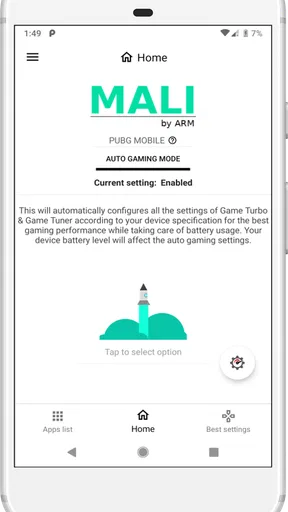
One of the standout features is the Game Turbo mode. With a single tap, you can enhance the gaming performance by optimizing your CPU and GPU settings. It’s like giving your phone a quick caffeine shot—everything just runs smoother and faster.
Graphics Glory
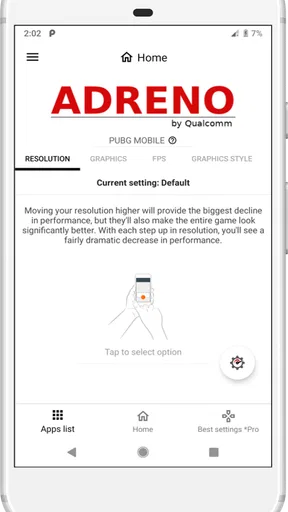
Graphics are the heart and soul of any game, and with the Game Tuner feature, you can play around with the graphics settings to get them just how you like. Whether you want to crank up the resolution or adjust the frames per second, the control is in your hands. I loved being able to fine-tune the graphics settings based on the game I was playing. It’s like having a personal graphics assistant.
Extras That Count
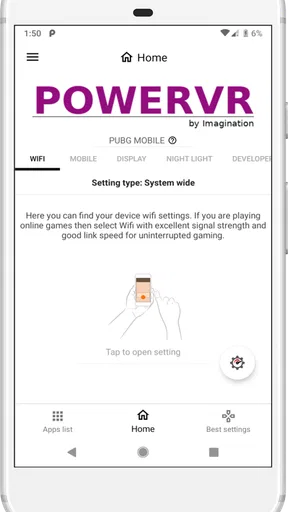
Beyond the core features, Gamers GLTool with Game Tuner also offers some nifty extras. The Ping Booster is a game-changer, especially if you’re into online multiplayer games. It helps reduce lag by optimizing your network connection, which is something every gamer can appreciate. No more blaming your internet for that missed shot!
Another cool addition is the GFX Tool, which lets you unlock advanced graphics settings in games that may not offer them natively. This is perfect for those who like to push their devices to the limits and see what they’re truly capable of. And, if you’re a fan of clean interfaces, the app also includes a Junk Cleaner that helps you keep your device clutter-free.
Final Thoughts
So, is Gamers GLTool with Game Tuner worth the download? If you’re serious about mobile gaming, I’d say it’s a no-brainer. The app offers a comprehensive suite of tools that genuinely enhance gaming performance. It’s easy to use, effective, and offers features that cater to both casual and hardcore gamers alike.
In a world where every millisecond can make a difference, having the right tools at your disposal is crucial. Gamers GLTool with Game Tuner gives you those tools and then some. Whether you’re trying to gain a competitive edge or just want a smoother gaming experience, this app is definitely worth checking out. Happy gaming!
Pros
- Enhances gaming performance effectively.
- Easy-to-use interface for all users.
- Customizable game settings available.
- Supports a wide range of games.
- Boosts device speed significantly.
Cons
- Contains ads in the free version.
- Requires in-app purchases for full features.
- Limited support for older devices.
- Battery consumption can be high.
- Some features need root access.
FAQs for Gamers GLTool with Game Tuner
What is Gamers GLTool with Game Tuner?
Gamers GLTool with Game Tuner is an optimization app designed to enhance gaming performance on Android devices. It allows users to tweak graphics settings, boost CPU and GPU performance, and manage other system resources for a smoother gaming experience. It's particularly useful for users who play graphics-intensive games.
How does Gamers GLTool improve gaming performance?
The app improves gaming performance by allowing users to adjust various settings such as resolution, rendering quality, and FPS. It also offers options to boost CPU and GPU performance, reduce lag, and manage RAM usage. These features help optimize device resources, making gameplay smoother and more responsive.
Is Gamers GLTool safe to use on my device?
Yes, Gamers GLTool is safe to use on your device. It does not require root access and operates within the confines of your device’s permissions. However, users should be cautious with extreme settings adjustments, as they could potentially lead to overheating or battery drain if not managed properly.
Does Gamers GLTool work with all Android games?
Gamers GLTool is compatible with most Android games, especially those that are resource-intensive. It provides a universal set of tools that can be applied across various games to enhance performance. However, the effectiveness may vary depending on the game’s compatibility with the optimization settings.
Do I need technical knowledge to use Gamers GLTool effectively?
While some technical knowledge can be beneficial, Gamers GLTool is designed to be user-friendly with an intuitive interface. It provides presets and recommendations for optimal settings, so even users with minimal technical expertise can improve their gaming experience. Advanced users have the option to fine-tune settings manually.


